What's New - Powerpay 6.29
Welcome to the 6.29 release notes. Review the information for details relating to the 6.29 release. If you prefer, you can view a PDF version of the release notes.
New Functionality in Powerpay
 Time Review
Powerpay People payrolls with Daily Hours enabled includes the Time Review page. This page allows Payroll Admins, and users with Role Based security access rights, to quickly review time entered by employees and make any necessary changes.
The Employee Earning Details section displays reference information, such as pay type and pay rate, which allows you to quickly confirm if an employee’s submitted pay aligns with their ‘normal’ wages. For example, are they missing commissions or is an exception pay rate correct?
To learn more about how Powerpay Time Solutions can help you, click here.
Time Review
The Time Review dashboard allows Payroll Admins to quickly see the status of timesheet, time off requests and statutory holiday calculations (if applicable) all in one place.
The dashboard view is dynamic based on the features enabled for your payroll.
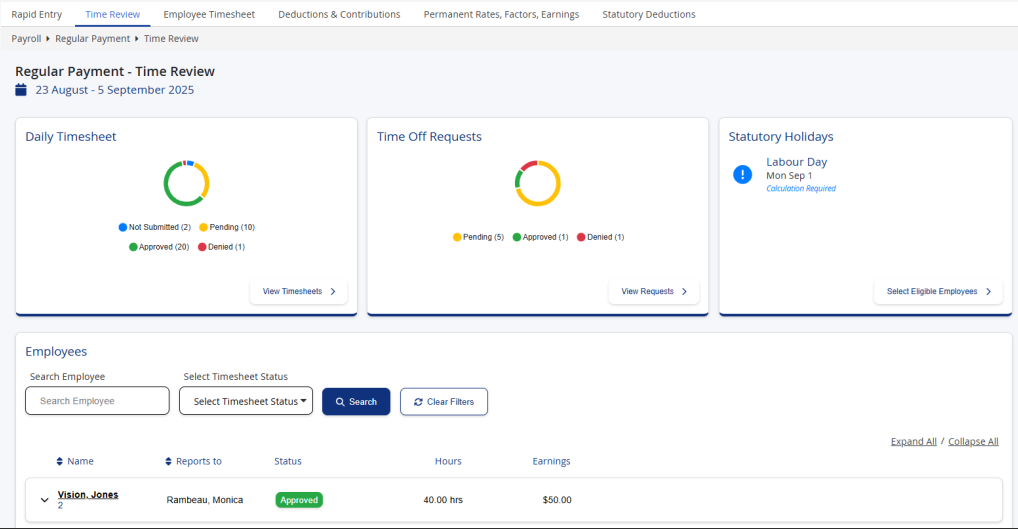
Review time entered
The Time Review page. is available in Powerpay when a Regular payroll run is open. It is not available for Extra, ROE and Year End runs.
-
Click the Pay Period menu and click the Enter button for the pay period you want to work with.
-
Go to the Time Review page.
-
Use the filters to search time by employee or timesheet status (Not Submitted, Approved, Pending or Denied).
-
Select the employee timesheet to review.
-
Review the information displayed.
-
(optional) Click the + Add icon in the Date column to add hours/earnings to a specified day.
Note: Hours entered on the Time Review page do not sync back to Self Service but display on the Regular Timesheet
-
Click Approve or Deny pending timesheets.
Payroll Preview
Excel Report
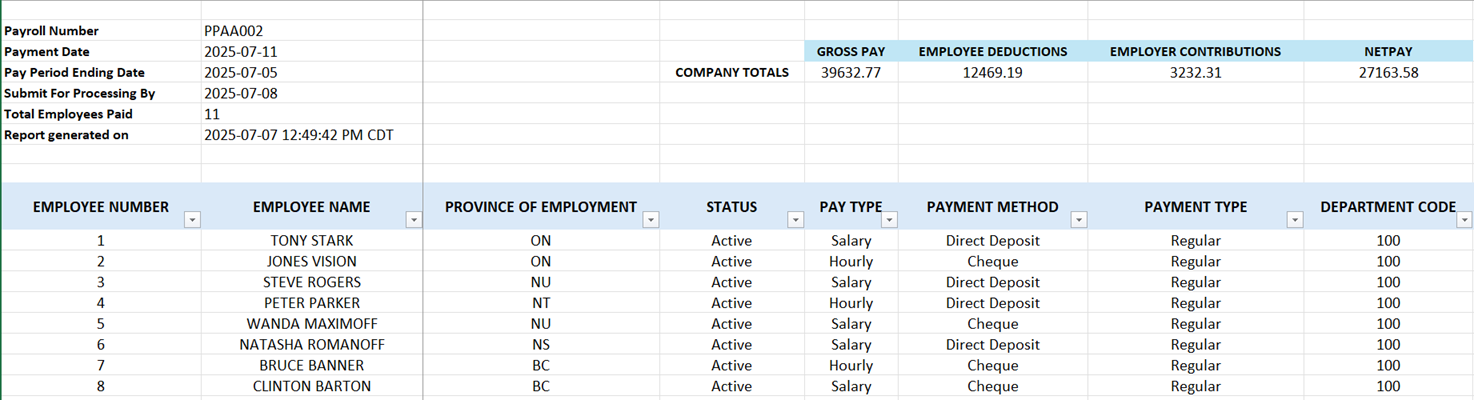
The Payroll Preview report is available in Excel format for Regular and Extra runs.
Benefits:
-
Easily download, sort, filter, and analyze Payroll Preview data.
-
Quickly identify any unexpected values and cross-reference them to Powerpay for correction.
-
A familiar format to be leveraged in other reports and systems.
-
Can be shared or archived without manual transcription or copy/paste work.
Features:
Company Totals & Payroll Summary
-
Displays gross pay, employee and employer contributions, and net pay for the current pay period.
-
Displays payroll number, pay period date, total employees paid, and report generation date/time.
Payroll Details by Employee
-
Payroll totals are broken down into rows representing each employee and payment type.
-
Includes gross and net pay (current & YTD), deductions (current & YTD), contributions (current & YTD), and total garnishees.
Generate Excel Payroll Preview Report
-
Go to the Payroll Preview page. (Process > Payroll Preview)
-
Click Request.
Powerpay generates the preview.
-
Click the Spreadsheet button.
Powerpay downloads the report. The report displays the results based on payment type: reversal, manual, regular payment, and second payment.
Note: This feature will deploy automatically to customers in a phased approach between October 29 – December 31, 2025.
Note: If an error occurs with the preview, after this feature is deployed to your payroll, the Spreadsheet button does not display. Resolve the error displayed and resubmit your request.
Salary Proration
When salaried employees are hired, reactivated or terminated mid-pay period. Powerpay automatically calculates a prorated salary amount for that pay. This ensures that employees are paid accurately for the number of days worked in the pay period.
This feature is available for Regular and Extra Runs.
Benefits
Prorating ensures that employees are compensated fairly for the time actually worked, based on the payroll schedule in effect at the time of hire. Automating this process eliminates manual calculations, reduces errors, and ensures compliance with standard payroll practices.
How Salary Proration Works
Powerpay uses the Pay Period Start and End Dates to determine the total number of working days in a pay period. It then uses the employee’s First Day Worked (for new hires), ROE First Day Worked (for rehires) or Last Day Worked (for terminated employees) to calculate the number of payable days.
Powerpay uses the employee’s annual salary or salary per pay period to determine a daily salary. Powerpay then multiplies that value by the number of days worked to calculate the employee’s prorated first pay.
Powerpay calculates proration based on a standard work week (Monday to Friday) and excludes weekends and statutory holidays from the calculation.
Examples:
-
If the pay period includes 10 working days, and the employee’s First Day Worked is the 6th day of the period, Powerpay will calculate and pay 5 days of salary for that pay period.
-
The pay period is Oct 4-17, and for a New Hire, and the employee’s First Day Worked is October 8th. The Salary Override calculated amount would include 8 working days.
Salary Proration in the New Hire Wizard or Onboarding Wizard
Note: This feature is available for Regular and Extra runs for New Hires.
When new salaried employees are hired mid-pay period using the New Hire Wizard or Onboarding Wizard, Powerpay automatically calculates a prorated salary amount for their first pay.
You can choose to clear the Prorate Salary Payment checkbox or modify the prorated amount calculated as needed.
-
Open the People List.
-
Click the
 button.
 -
On the employment information page, if the selected PayType includes the word ‘Salary’, and the employee’s First Day Worked falls within an open or soon to be opened pay period, the Prorate First Salary Payment checkbox displays.
-
To adjust the prorated amount, enter the desired amount in the Salary Override field.
-
To deactivate Salary Proration, clear the Prorate First Salary Payment checkbox.
Note: If the Salary or First Day Worked is changed on the, you must manually update the Salary Override amount.
Note: Saved salary proration calculations are not recalculated if a new Pay Period Ending Date is entered and saved on the Calendar Edit page. Calendar Edit page.
-
-
Click Next to continue through the remaining employee setup pages.
-
On the New Hire Summary page, review the salary override amount calculated or entered.
-
Click Save.
Powerpay populates the salary override amount on the Employee Timesheet when the pay period is opened.
Note: If the employee is not activated in the current pay period, the salary override amount is ignored.
Note: If a pay period is closed, all employee changes, including the saved salary override, must be deleted from the pay period before closing it.
Salary Proration for a reactivated employee
-
Click the Pay Period menu and click the Enter button for the pay period you want to work with.
-
Reactivate the employee on the Status Change / ROE page.
-
Select the employee from the People List.
-
Enter the Status Change Options.
Resulting Status: Active
ROE Form: Do not produce
Current Pay: Process
-
Click Next.
-
Enter the ROE First Day Worked.
If the date falls within the current pay period, the Prorate Salary Payment checkbox defaults to selected and the salary override is automatically calculated based on the Salary Per Pay field.
-
To adjust the prorated amount, enter the desired amount in the Salary Override field.
-
To deactivate Salary Proration, clear the Prorate First Salary Payment checkbox.
-
-
Click Save.
Powerpay populates the salary override amount on the Employee Timesheet when the pay period is opened.
Note: If a pay period is closed, all employee changes, including the saved salary override, must be deleted from the pay period before closing it.
Note: If Reverse Status is selected on the Status Change / ROE page. after the employee is terminated and before the payroll is submitted, the salary override calculated by proration is removed from the Timesheet.
Salary Proration for a terminated employee
-
Click the Pay Period menu and click the Enter button for the pay period you want to work with.
-
Terminate the employee on the Status Change / ROE page.
page. -
Select the employee from the People List.
-
Enter the Status Change Options and set the Current Pay to Process.
-
Click Next.
-
Enter the Last Day Worked.
If the date falls within the current pay period, the Prorate Salary Payment checkbox defaults to selected and the salary override is automatically calculated based on the Salary Per Pay field.
-
To adjust the prorated amount, enter the desired amount in the Salary Override field.
-
To deactivate Salary Proration, clear the Prorate First Salary Payment checkbox.
-
-
Click Save.
Powerpay populates the salary override amount on the Employee Timesheet when the pay period is opened.
Note: If a pay period is closed, all employee changes, including the saved salary override, must be deleted from the pay period before closing it.
Note: If Reverse Status is selected on the Status Change / ROE page. after the employee is terminated and before the payroll is submitted, the salary override calculated by proration is removed from the Timesheet.
Statutory Holiday Assist
Statutory Holiday Assist makes calculating statutory holiday pay easier!
This feature is available for Ontario employers using Powerpay People with Daily Hours enabled. Other jurisdictions will follow in future releases.
When enabled, the Statutory Holidays section displays on the Time Review page. and includes:
-
Notifications of statutory holidays in the pay period
-
The calculation status: Calculation Requiredor Calculation Done
If there are no statutory holidays in the pay period, the following message displays:
No statutory holidays in this pay period.
If you are an Ontario employer with Daily Hours enabled but Statutory Holiday Assist not enabled for your payroll, the following message displays:
Statutory Holiday calculations for Ontario are now available. For more information contact Powerpay support.
When Statutory Holiday Assist is turned on, the Calendar tab. displays even if Time Off Requests is not enabled. In this release, custom holidays such as Easter Sunday, Easter Monday, or the first Monday in August are not included in the statutory holiday pay calculation.
Prerequisites
To calculate statutory holiday pay correctly, Powerpay requires four work weeks of dated hours or earnings from one or more of the following pages:
-
Daily Hours Timesheet
-
Regular Timesheet
-
Manual page
-
Reversal page
-
Time Review page.
If fewer than four weeks of dated data exist, statutory holiday pay will be understated. Due to the four work week requirement for dated data, there is a lag between when Daily Hours is first enabled and when Statutory Holiday Assist can perform accurate calculations.
Calculate statutory holiday pay
When Powerpay detects a statutory holiday in the current pay period for Ontario it looks back at the previous four work weeks for hours and earnings to determine if there are historical hours and earnings available to calculate the statutory holiday pay. If history exists, Powerpay uses the selected pay codes to include in the calculation as 'regular wages'.
-
Go to the Time Review page.
-
Click Select Eligible Employees.
-
Select the employees to be included in the calculation for the current statutory holiday.
-
Click Calculate.
Powerpay automatically inserts and saves the value into the Time Review page., next to the statutory holiday date, once the value is calculated.
Note: The payroll administrator can modify the value if required.
Statutory Holiday reminder on the Rapid Entry page
The Rapid Entry page. displays a reminder when a statutory holiday occurs in the pay period.
A statutory holiday occurs in the pay period. Please navigate to the Time review Page to calculate the statutory holiday pay for eligible hourly employees.
Clicking Time Review page in the message takes the user directly to the Time Review page..
New Enhancements in Powerpay
Daily Hours
Employee Comments for time entries
Employees may enter comments for time entries in Self Service to explain differences between scheduled hours versus time worked. When a comment is entered, the Comment icon displays with a dark background. These comments are view only to Managers and Payroll Admins after the hours are saved. Managers can view them in Self Service on the My Team's Timesheets page.. Payroll Administrators can view them on the Daily Hours Dashboard page.
Daylight Savings Time Handling for Daily Hours
For payrolls using the Start & End Times (9:00 AM – 5:00 PM) format for recording daily hours worked, Powerpay includes logic to calculate the correct number of hours worked when an employee shift extends from one day to the next and Daylight Savings Time either commences or ends.
Powerpay displays a message when hours are entered on the date the time change occurs.
Fall Back
Daylight Savings Time ends in this pay period on <date>. One hour will be subtracted to correct for the time change (if applicable hours are entered on that date).
Spring Ahead
Daylight Savings Time starts in the pay period on <date>. One hour will be added to correct for the time change (if applicable hours are entered on that date).
Daily Hours/Daily Earnings on the Regular Timesheet, Manuals and Reversals pages
Daily Hours/Daily Earnings sections are available on the Regular Timesheet, Manuals and Reversals pages allowing hours and earnings to be entered by date for statutory holiday pay.
When a user selects a code included in the statutory holiday calculation but doesn’t key it by date, a warning reminds them to key it by date.
Extra Runs
If the payroll administrator enters daily hours or earnings for an earning code configured to be included in the statutory holiday pay calculation for an eligible employee, and associates those hours or earnings to a date that falls within the statutory holiday pay calculation range on an Extra run, Powerpay includes the applicable daily hours or earnings in the statutory holiday pay calculation.
This includes hours or earnings entered on the Regular Timesheet, Manual, and Reversal pages.
New Enhancements in Self Service
Daily Hours
Employee comments for hours worked
Employees can enter comments for daily hours worked. This feature allows employees to provide an explanation for their hours if the hours worked differs from their scheduled hours.
This field is read-only to Managers and Payroll Admins. When comments are entered, the Comment icon will display for the manager on the manager on the My Team's Timesheets page. .
If daily hours are deleted, a comment associated with the daily hours entry is also deleted.
Add Employee comments for hours work
-
Go to the My Timesheet page.
or click the Timesheet icon on the homepage. -
Select the appropriate date range.
-
Enter your daily hours as usual.
-
Select the time entry to insert a comment.
-
Click the Comment icon.
-
Enter your comments then click Add.
Important: Do not include personally identifiable information (PII) with your remarks.
-
Click Save to save your comment and time entry.
Amend Employee comments for hours worked
Employees can edit or remove comments entered for daily hours worked prior to submitting their hours for approval.
-
Go to the My Timesheet page.
or click the Timesheet icon on the homepage. -
Select the appropriate date range.
-
Select the daily hours with a comment entered.
-
Click the Comment icon.
Note: The icon displays filled when a time entry includes comments.
-
Revise your comments then either click Add or Remove.
Important: Do not include personally identifiable information (PII) with your remarks.
-
Click Save to save your comment and time entry.
Daylight Savings Time Handling for Daily Hours
For payrolls using the Start & End Times (9:00 AM – 5:00 PM) format for recording daily hours worked, Powerpay includes logic to calculate the correct number of hours worked when an employee shift extends from one day to the next and Daylight Savings Time either commences or ends.
Powerpay displays a message when hours are entered on the date the time change occurs.
Fall Back
Daylight Savings Time ends in this pay period on <date>. One hour will be added to correct for the time change (if applicable hours are entered on that date). This adjustment does not apply in regions that do not observe Daylight Savings Time.
Spring Ahead
Daylight Savings Time starts in the pay period on <date>. One hour will be subtracted to correct for the time change (if applicable hours are entered on that date). This adjustment does not apply in regions that do not observe Daylight Savings Time.