Review your calendar for statutory holidays
A review of your annual payroll calendar is recommended to determine when a statutory holiday may require you to process your payroll earlier or change your payment date.
Tasks
-
Click the calendar link in the Compliance Centre to display the dates when financial institutions are closed.
-
Determine if a statutory holiday requires you to adjust your payment date for a bank closure.
-
Review your payments dates.
-
Go to the View Calendar page.

-
Confirm if any payment date falls on a date when the banks are closed.
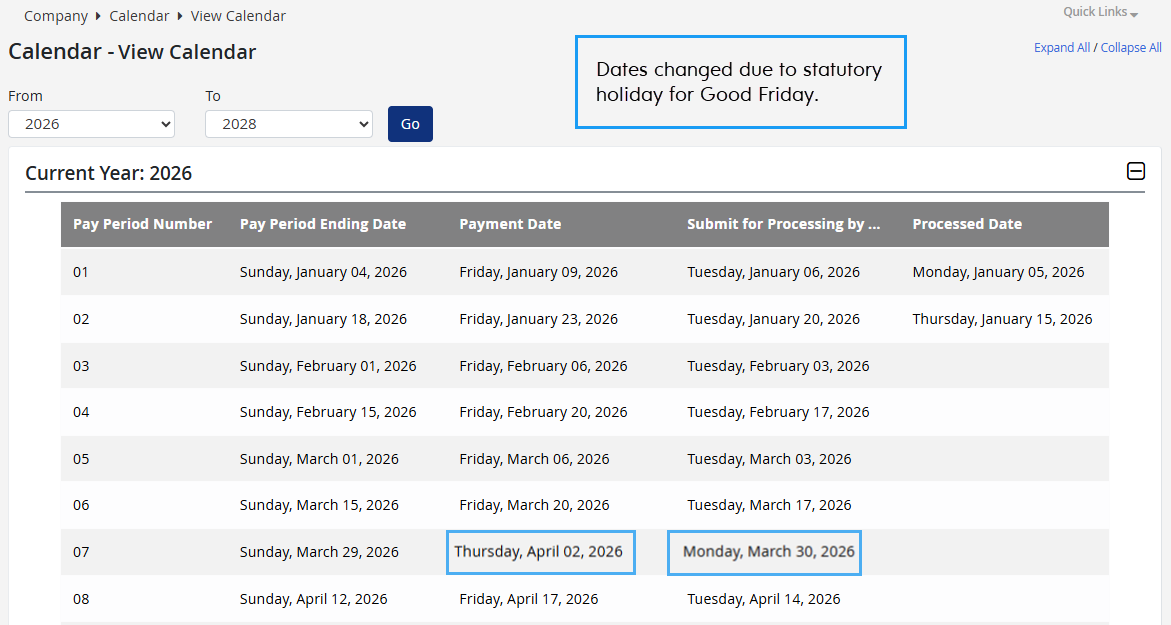
Note: Powerpay automatically adjusts the calendar information for non-banking days affecting all jurisdictions. Dayforce processing may also be impacted by a statutory holiday due to office closures.
-
-
Adjust the payment date(s), as needed.
For the current pay period
Amend the payment date for the current pay period when the pay period is open.
-
Go to the Select Pay page.
-
In the Pay Period Number column, click the pay period number for the open pay period.
-
Amend the payment date.
-
Click Save.
For a future pay period
To change a future payment date, that is not your next scheduled run, you can either wait until you’re ready to process that run and change the payment date then, or email your change requirements to your Customer Support Team.
-
-
-
Determine if a statutory holiday requires you to process your payroll earlier than normal.
-
Go to the View Calendar page.
-
Review the Submit for Processing by ...dates.
-
Confirm if Powerpay displays a date earlier than your normal processing schedule.
Note: Powerpay automatically adjusts the calendar information for non-banking days affecting all jurisdictions. Dayforce processing may also be impacted by a statutory holiday due to office closures.
Note: You may submit your payroll earlier than the Submit for Processing date displayed without updating this field in Powerpay. However, for future dates, you may wish to have this field updated. To update your calendar, email your change requirements to your Customer Support Team.
-
Notate the date exception(s) and set a reminder for yourself to submit your payroll earlier to allow for sufficient processing time.
-