Stop payment on an employee's deposit or cheque
If a payment to an employee is incorrect and you have submitted your payroll, you can stop the payment.
Note: Stop Payments on direct deposits must be phoned in before noon (Central Time) one day before the Cheque Date. Stop Payments on cheques can be made any time as long as the cheque is not cashed. For your own security, the cheque should be in your possession before making the stop payment.
In the event that you should need to cancel an entire payroll, please contact your Customer Support Team for assistance.
Service fees apply for each successful stop payment and any re-issued cheques. There is no additional charge to have a credit issued with your next payroll or a credit to your bank account.
-
The year-to-date totals for an employee's wages are not affected by a stop payment or a reject notice for an EFT/cheque. If you require the payment to be reversed from their history, a reversal adjustment must be processed.
-
Employees subscribed to Self Service will not receive pay statement information for successful stop payments.
Next steps
Have the below information ready before you contact the Customer Support Team.
Go to the Payroll Reports page.
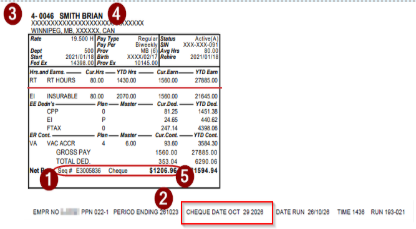
The payment amount and the sequence number of the cheque or direct deposit (EFT) is found on the Payroll Register report in the Standard Reports Package.
| Tasks | |
|
1. Sequence Number 2. Payment Date/Cheque Date (located at bottom of payroll register page.) 3. Employee Number 4. Employee Name 5. Net Pay |
|
|
6. Determine how you would like the refund issued:
|
|
Place the stop payment
-
Once you have gathered all of the information,
-
If the stop is successful, a confirmation number will be provided. Keep this number for future reference. Once a confirmation number is provided, the stop payment cannot be reversed.
Note: We cannot apply the credit to a payroll that has already been processed.
-
If the stop is unsuccessful, you will be advised.
- If the original payment was incorrect, reverse the original payment using the Reversal page. The page contains additional detailed instructions.
-
If additional stops are required, they can be entered on the same phone call.
-
Confirmation of the Stop Payment will display on next payroll run on the Fund Summary report.