Enter Daily Hours as hours
Use the Daily Hours feature to enter your daily hours worked (Regular and Overtime hours per day) in Self Service (web and mobile).
Active Hourly employees can enter the regular and overtime hours in Self Service.
-
Entering, editing, approving and denying Daily Hours in Self Service may be restricted depending on the state of the payroll and the deadline for submitting changes.
-
On Leave and Terminated employees have view only access.
Tasks
 Enter daily hours as hours
-
Go to the My Timesheet page.
or click the Timesheet icon on the homepage.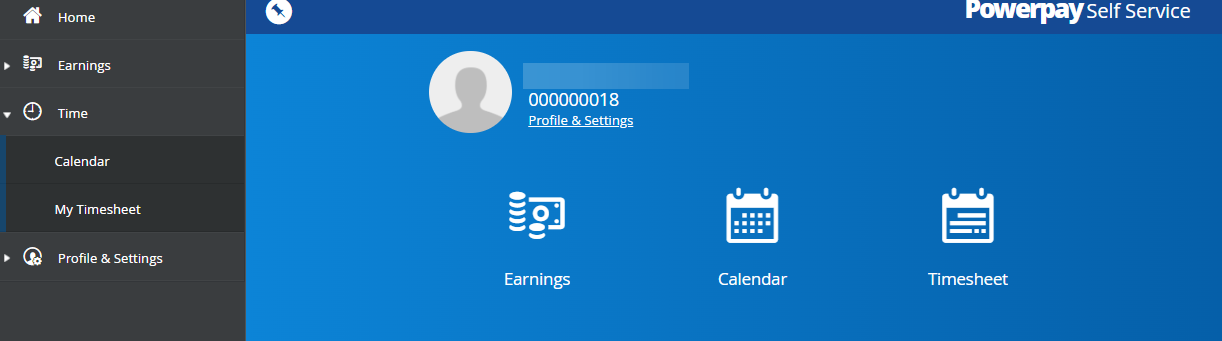
-
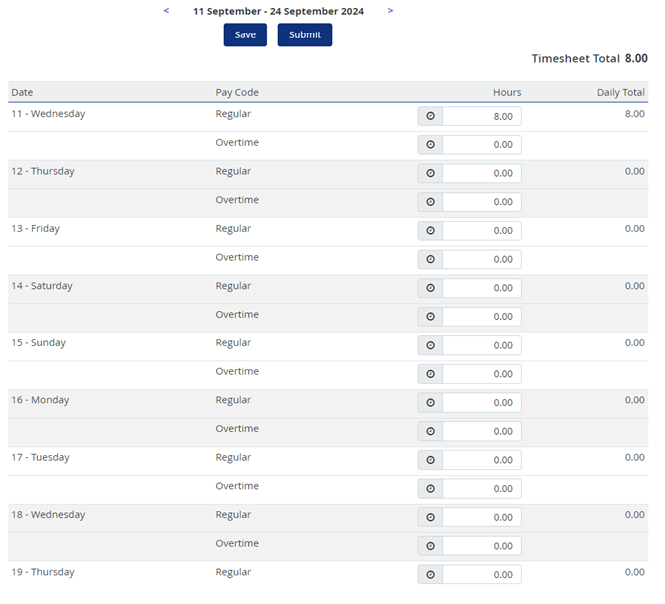
Select the appropriate date range.
You can enter time for the current pay period or the next pay period.
Note: Using the back arrow you can go back up to the pay period when Daily Hours was enabled for your payroll. Using the forward arrow, you can navigate up to one future pay period.
-
Enter your daily regular and overtime hours by day up to two decimal places.
As you enter your time, the Daily Totals, and the Total Hours for the pay period update.
If your company uses the Time Off Request feature and you have requested time off for the current pay period, the time off hours display on your timesheet.
Note: You cannot exceed 24 hours for a single date.
-
(optional) Add a comment to any time entry.
For example, you may want to add a comment to provide an explanation if your hours worked differs from your scheduled hours. The comment displays for your manager and payroll administrator.
-
Click the Comment icon.
-
Enter your comment then click Add.
Important: Do not include personally identifiable information (PII) with your remarks.
-
-
Click Save to save your comment and time entry.
-
Repeat step 2- 5 for each day worked in the pay period.
Important: Do not submit your hours for approval until you have entered and saved your hours for your last day worked in the pay period.
-
Once you have entered all your hours for the pay period you must submit your hours for approval. Click Submit.
Note: Submitted hours display in grey and cannot be modified. Contact your Manager or Payroll Administrator for assistance if you need to change your hours. If the hours are denied by the approver, you can update your hours.
An email is automatically sent to your manager to approve your hours.
Delete time entries entered as hours
Hours entered can be deleted prior to submitting your timesheet.
-
Go to the My Timesheet page.
or click the Timesheet icon on the homepage. -
Select the appropriate date range.
-
Select and delete the hours to remove.
Note: If daily hours are deleted, any comment associated with the daily hours entry is also deleted.
-
Click Save.
Amend Employee comments for hours worked
You can edit or remove comments entered for daily hours worked prior to submitting their hours for approval.
-
Go to the My Timesheet page.
or click the Timesheet icon on the homepage. -
Select the appropriate date range.
-
Select the daily hours with a comment entered.
-
Click the Comment icon.
Note: The icon displays filled when a time entry includes comments.
-
Revise your comments then either click Add or Remove.
Important: Do not include personally identifiable information (PII) with your remarks.
-
Click Save to save your comment.